Setting up an eSIM means adding a cellular plan to your iPhone without putting a SIM card in it. The part that often causes confusion is choosing the right activation route: your carrier may send the plan to the phone, let you transfer an existing number, provide a QR code, or ask you to use its app. Once the plan is installed, check that the line is active and that the iPhone is using the line you intended for calls or data.
Check the iPhone and plan first
Apple supports eSIM on the iPhone XS, XS Max, XR, and later, with model and regional exceptions. iPhone 14 and later models purchased in the United States use eSIM only; they do not have a physical SIM tray. If the phone came from another country, check its exact model rather than relying on the model name alone.
You also need a plan from a carrier or provider that supports eSIM. Connect the iPhone to Wi-Fi or a hotspot for setup, and keep any activation message, QR code, or carrier app instructions available. If you are adding a line from a different carrier, check Settings → General → About → Carrier Lock. No SIM restrictions indicate that the iPhone is unlocked.
Choose the way your plan is being added
Start with the method your carrier supplied. The same Add eSIM screen can lead to several different processes, so there is no single QR-code step that applies to every plan.
The carrier assigned a plan to this iPhone
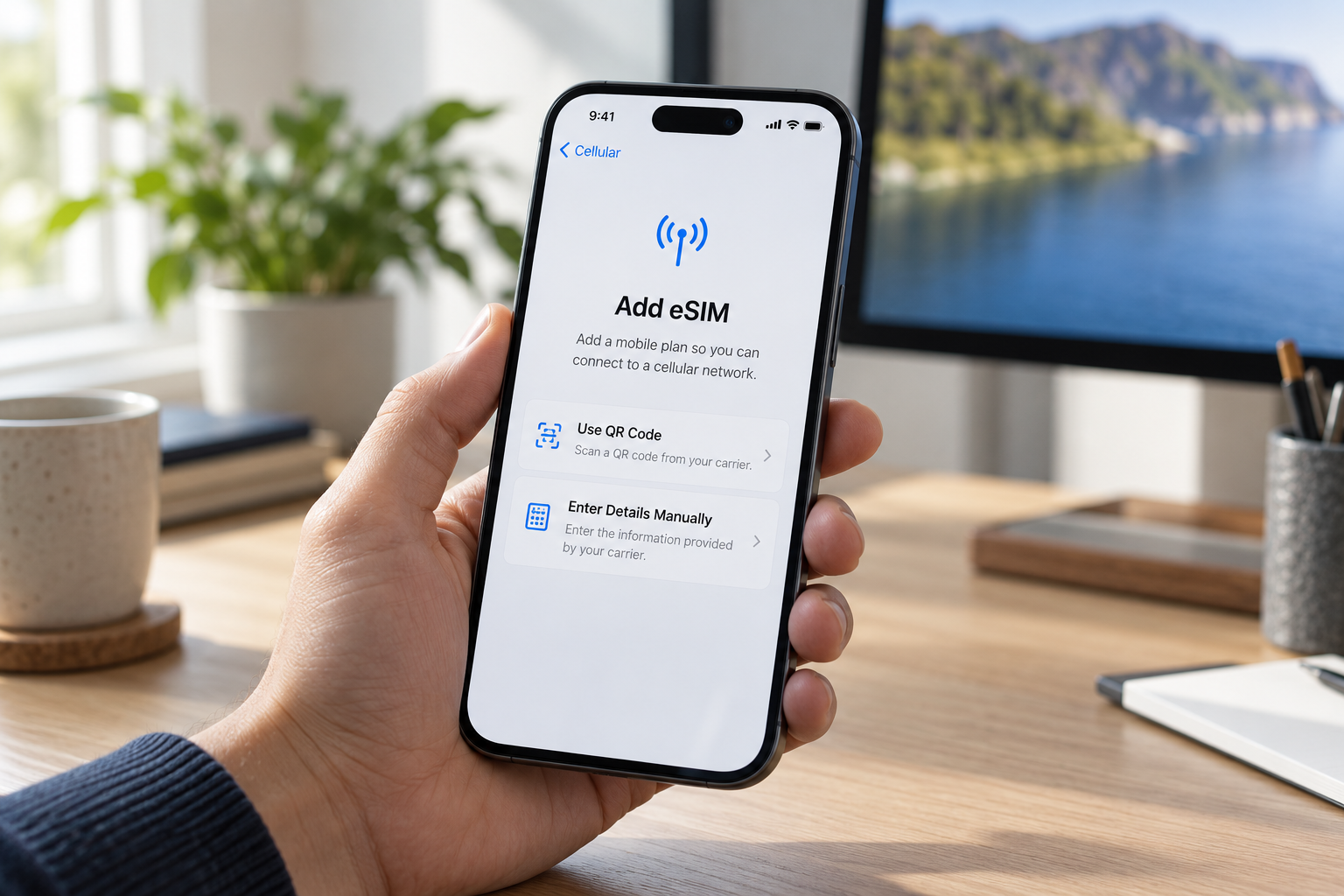
When the carrier has prepared the eSIM for the device, follow the cellular prompts during the iPhone’s initial setup. If the phone is already set up, look for a notification that a carrier cellular plan is ready to install and follow its instructions. To review available options yourself, open Settings → Cellular → Add eSIM or Set Up Cellular. The wording may differ with the plan and carrier.
You are moving a number from another iPhone
If your carrier offers eSIM Quick Transfer, place the old and new iPhones near one another. Bluetooth should be on, both devices should be signed in with your Apple Account, and the old phone should be unlocked. Apple currently requires iOS 18.4 or later on both phones for this transfer method.
On the new phone, open Settings → Cellular → Add eSIM or Set Up Cellular. Select the number offered for transfer; if it is not listed, choose Transfer From Nearby iPhone. Approve the request on the old phone and wait for activation to finish. Once that number works on the new iPhone, its previous SIM is deactivated. If no transfer option appears, ask the carrier which alternative it supports.
The carrier gave you a QR code or another activation method
During initial setup, choose Use QR Code when the cellular screen offers it. On an iPhone that is already set up, scan the carrier’s code with the Camera app and tap the Cellular Plan Detected notification. With iOS 17.4 or later, Apple also allows you to touch and hold a supported carrier QR code shown in an email or browser on the iPhone itself. Follow any confirmation-code prompt using the code from your carrier.
A carrier may instead provide a link, activate through its app, or give you details to enter manually. Use the instructions attached to your specific plan; receiving no QR code does not, by itself, mean that something is missing.
You want to replace a physical SIM in the same iPhone
Some carriers support conversion without moving the number to another device. Open Settings → Cellular → Add eSIM or Set Up Cellular, choose the number on the physical SIM, and select Convert to eSIM if it appears. Follow the prompts. The physical SIM for that number stops working after conversion, so confirm that the eSIM line works before relying on it. If the conversion choice is absent, ask the carrier whether it offers this option.
Moving an eSIM from Android is a separate case. Apple says direct transfer is available with iOS 26 or later only with certain carriers and phone manufacturers. Otherwise, the carrier can arrange activation or provide a QR code.
Confirm which line the iPhone uses
If the phone has two lines, go to Settings → Cellular and make sure the intended lines are turned on. Choose Cellular Data for the line that should provide internet access and Default Voice Line for ordinary outgoing calls. A newly added travel plan will not necessarily become your data line automatically. Using lines from two different carriers requires an unlocked iPhone.
After activation, check the line in Cellular settings and try a call or cellular data, as appropriate for the plan. For a data test, turn Wi-Fi off briefly so the result comes from the cellular connection. A plan appearing in Settings is useful to check, but working service is the practical confirmation.
If activation or service fails
Check the basics before repeating the setup: an active eSIM plan, Wi-Fi or hotspot access, and the latest iOS version the device supports. In Settings → Cellular, see whether the number appears; if it does, turn that line off and back on. Then try Airplane Mode off and on, restart the iPhone, and open Settings → General → About to check for a carrier-settings update. Apple advises checking for the carrier in the Control Center after each step. Apple’s eSIM troubleshooting instructions cover this sequence.
If the line still will not activate, contact the carrier. Tell it the exact error message and your phone number, and have the IMEI or EID ready from Settings → General → About. The carrier can confirm which activation method is available for your plan and device.