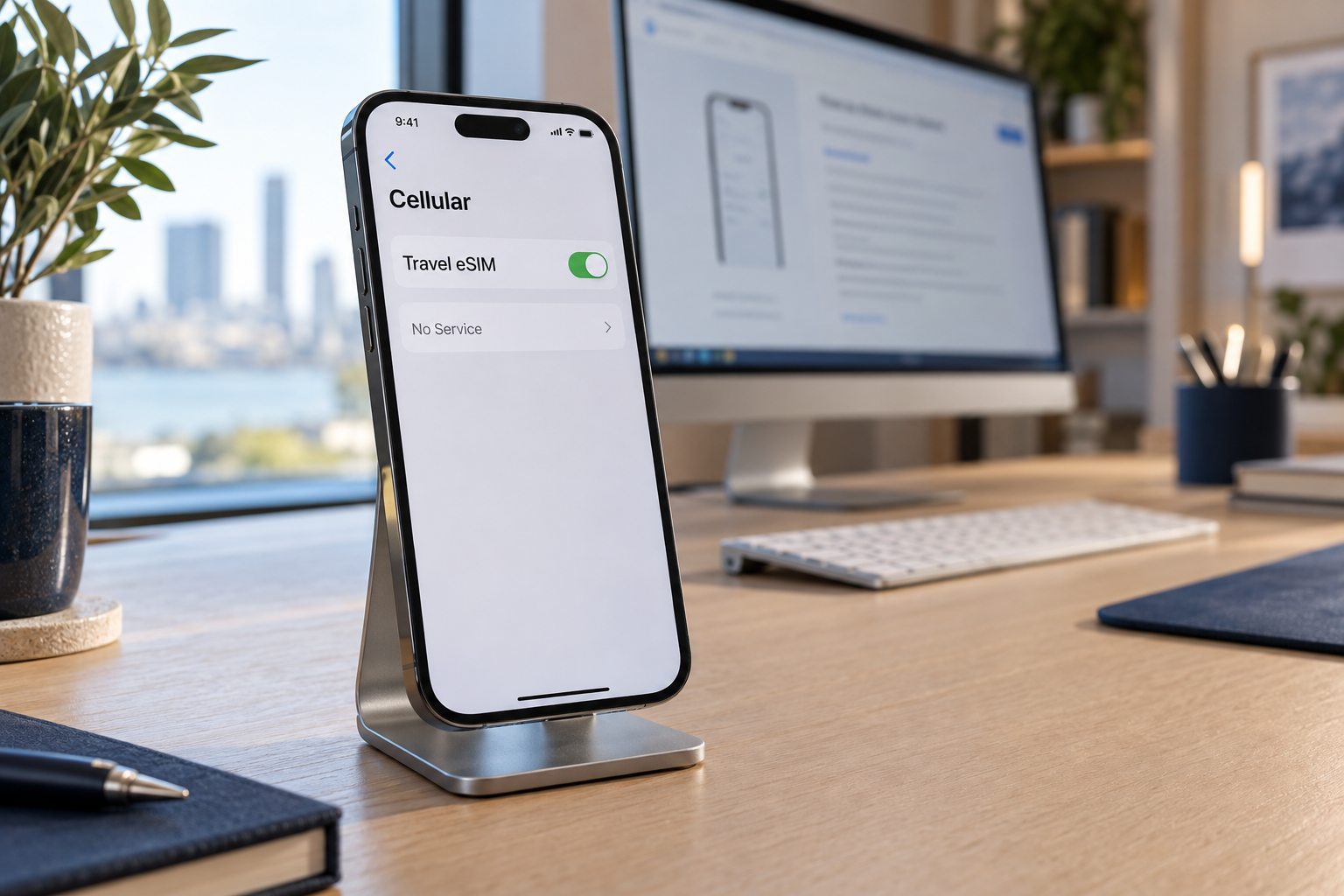
If your eSIM is not working on an iPhone, first check whether the problem is installation, network connection, or mobile data. An eSIM that will not activate needs a different approach from one that shows signal bars but cannot load a website.
Start by confirming that the eSIM line is enabled and the correct plan is selected for cellular data. Then check your provider’s activation instructions, account status, and coverage. Avoid deleting the eSIM as an early troubleshooting step: Apple advises doing so only when your carrier directs you.
The steps below help you narrow down the fault without immediately erasing settings or removing a usable plan.
Identify Which eSIM Problem You Have
Open Settings > Cellular and look for the affected plan. Depending on your region and iOS version, this menu may be called Mobile Data or Mobile Service.
| What you see | What to check first |
| The eSIM plan is missing | Installation method, device compatibility, and provider activation |
| An activation error appears | Internet connection, carrier eligibility, and the exact error message |
| The plan appears but shows No Service or Searching | Whether the line is enabled, network coverage, and account status |
| Signal bars appear but websites do not load | Selected data line, plan allowance, roaming requirements, and APN |
| Data works but ordinary calls or SMS do not | Whether the plan includes a phone number, calls, and SMS |
| A second line becomes unavailable during a call | Dual SIM behavior, Wi-Fi Calling, and data-switching settings |
Do not repeat every fix for every symptom. Once you identify the affected stage, work through the relevant section.
1. Confirm Compatibility and Carrier Lock Status
Check the exact iPhone model and the country or region where it was purchased against your provider’s compatibility requirements. Regional versions can differ, so a model-family name alone is not enough.
If you are adding a plan from another carrier, check whether the phone is unlocked:
- Open Settings.
- Select General > About.
- Find Carrier Lock.
- Look for No SIM restrictions.
If the phone is locked, contact the carrier responsible for the lock. Apple cannot unlock an iPhone for use with another carrier.
Apple also explains that using two different carriers with Dual SIM requires an unlocked iPhone. Otherwise, both plans must be from the same carrier.
2. If the eSIM Will Not Install or Activate
Connect to a reliable Wi-Fi network and follow the activation method supplied by your provider. Depending on the carrier, setup may use a QR code, an app, carrier activation, or a supported transfer process.
Do not assume that instructions for one provider apply to another.
If activation fails:
- Record the complete error message.
- Check whether the plan has already appeared under Cellular.
- Confirm that your account and plan are eligible for activation.
- Ask the provider whether the activation details are still valid.
If the plan is already listed, avoid repeatedly trying to add it as a new eSIM. Instead, ask the provider whether activation has completed on its side.
Apple’s eSIM setup guidance explains the supported installation methods. There is no single activation time that applies to every carrier, so use your provider’s stated timeframe rather than a universal waiting period.
3. If the eSIM Shows No Service or Searching
Apple explains that No Service or Searching means the device is not connected to a cellular network.
First, open Settings > Cellular, select the affected plan, and make sure Turn On This Line is enabled.
Then try reconnecting:
- Turn on Airplane Mode.
- Wait at least 15 seconds.
- Turn Airplane Mode off.
- Check whether the network returns.
If it does not, restart the iPhone.
The next check belongs with the carrier: confirm coverage, local outages, account status, and whether the device is blocked from service. For an imported phone, ask whether local device-registration requirements apply.
A reset cannot resolve a carrier outage or an account restriction. Apple’s No Service troubleshooting guide provides further checks and explains when service may be needed.
4. If the eSIM Has Signal but Mobile Data Does Not Work
Having a signal does not establish that the intended plan is supplying your internet connection.
Open Settings > Cellular > Cellular Data and select the eSIM you want to use for data. If several plans are installed, check their labels carefully.
Once you have confirmed the correct plan and any applicable charges, temporarily turn Wi-Fi off and load a new webpage. This helps distinguish a working Wi-Fi connection from working cellular data.
If browsing still fails, review the following settings.
Check the Plan’s Allowance and Validity
Use the provider’s app, account page, or support channel to confirm:
- The plan is active.
- Data remains available.
- The validity period has not ended.
- The current country is included.
- Any required activation step has been completed.
A profile can remain installed on the phone even when the associated service is no longer usable.
Check Data Roaming for the Correct Line
Travel eSIM providers may require roaming to be enabled for their service. Follow the instructions for your specific plan.
Select the travel eSIM under Cellular and locate its Data Roaming setting. Do not turn roaming on indiscriminately for every installed line.
Your home plan may have separate roaming charges. Review the provider’s terms before leaving that line active for calls, messages, or data.
Check APN Instructions
An Access Point Name, or APN, defines the network path used for cellular data. Some providers configure it automatically; others supply settings.
Only enter APN details supplied by the carrier or eSIM provider. Apple warns that incorrect APN settings can interrupt cellular connectivity and potentially cause additional charges.
If the APN menu is unavailable, ask the provider whether changes are permitted or necessary. Do not install an unrelated configuration profile to make the menu appear.
See Apple’s APN guidance for details.
5. Check Carrier Settings and iOS Updates
Connect to Wi-Fi and open Settings > General > About. Install a carrier-settings update if prompted.
Also check for the latest iOS version supported by your iPhone. Before updating, back up your iPhone and confirm that the backup completed.
A carrier-settings update is separate from an iOS update. Checking one does not replace checking the other.
After updating, test the affected line again. A software update should not be treated as a guaranteed fix for an expired plan or a carrier-side activation problem.
6. If a Travel eSIM Works for Data but Not Calls
Check what you purchased. Some travel eSIMs provide data without ordinary cellular calls or SMS.
With a data-only plan, internet-based messaging and calling applications may work, while dialing through the Phone app requires a suitable voice service.
That difference does not necessarily indicate an eSIM fault.
If you retain your home line for calls or verification messages, review its roaming terms separately. Selecting the travel eSIM for data does not automatically remove all possible charges from the other line.
Apple’s international eSIM travel guide explains the distinction between travel data plans and services that include local calling.
7. If the Problem Started After Moving to a New iPhone
Moving photos, applications, and settings does not by itself confirm that cellular service has transferred.
Check whether your carrier supports eSIM Quick Transfer or requires another activation method. Complete the cellular setup and verify service on the new phone before erasing the old device.
If the transfer fails, give the carrier the exact error message and ask whether it needs to issue a new activation.
Do not assume that an old QR code can be reused. Confirm the replacement or transfer process with the provider.
8. Check Dual SIM Behavior During Calls
Your iPhone uses one cellular data network at a time. Under certain Dual SIM conditions, the other line can show No Service while you are on a call.
Wi-Fi Calling support and Allow Cellular Data Switching can affect what works during that call. These settings depend on the carriers and plans involved.
Before enabling data switching, understand which plan might supply the connection and whether that could create additional charges.
If the problem only happens during calls, explain that detail to support. It helps distinguish Dual SIM behavior from a line that never connects.
Should You Delete the eSIM or Reset Network Settings?
Do Not Delete the eSIM as a Routine Fix
Apple specifically advises against deleting an eSIM for troubleshooting unless the carrier instructs you to do so.
Removing it may require the carrier to provide a replacement. Before agreeing to deletion, confirm how you will reactivate the service and ensure you have access to Wi-Fi and your provider account.
Deleting the eSIM also does not cancel the cellular subscription. Cancellation must be arranged with the provider.
Keep Network Reset as a Later Step
A network reset removes saved Wi-Fi networks and passwords and resets cellular, VPN, and APN settings.
It is better considered after the line, coverage, account, and provider configuration have been checked. If support recommends it, make sure you can reconnect afterward and have any required provider settings available.
On a work-managed phone, consult your administrator before changing managed network settings. A factory reset should not be the default response to an eSIM problem.
What to Send Your Carrier or eSIM Provider
A focused support request can reduce repeated troubleshooting. Include:
- Your iPhone model and iOS version.
- The plan or order reference.
- Your current country and location.
- The exact error or status message.
- Whether the eSIM appears under Cellular.
- Whether calls, messages, and data fail together or separately.
- The checks are already completed.
The provider may request an IMEI or EID through its verified support channel. These identifiers are available under Settings > General > About.
Keep account credentials, activation QR codes, and device identifiers out of public posts.
If the carrier confirms that the account and network are working correctly but the phone still cannot connect, contact Apple Support for device diagnostics.
Frequently Asked Questions
Why is my eSIM installed but not working?
Installation and usable service are different stages. Check activation status, whether the line is enabled, coverage, the selected data plan, and any provider-specific settings.
Does an eSIM need Wi-Fi?
A working internet connection is generally needed for setup. After activation, an active plan with coverage can provide cellular data without Wi-Fi.
Will restarting my iPhone delete the eSIM?
A normal restart is different from deleting an eSIM or erasing the phone. Restarting is included in Apple’s basic troubleshooting steps.
Why does my eSIM work in one country but not another?
Check whether the second country is included in the plan and whether the provider requires different connection settings. A plan described as regional or global still has defined coverage.
How long should I wait for activation?
Follow the carrier’s stated activation timeframe. If that period has passed, report the exact status rather than repeatedly deleting or reinstalling the plan.
Restore Service by Fixing the Right Problem
When an eSIM is not working on an iPhone, identify the failing stage first: setup, network connection, mobile data, or calling.
Check the selected line and plan, follow the provider’s configuration instructions, and involve the carrier when activation or account access needs correction. Keep deletion and broad resets out of the early troubleshooting sequence.